

Entering Medications That The Patient Is Currently Taking (Med Entry)
Med Entry takes care of the following processes:
- Enter medications that a patient is currently taking prescribed by other doctors.
- Import medication from Sure Scripts.
Enter medications that a patient is currently taking prescribed by other doctors. Step 1:- In the patient chart, click the “e-Rx” icon.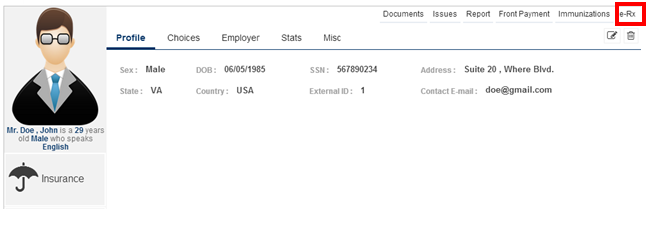 You get to the “Compose Rx” page. Click on the “Med Entry” tab shown below to enter the medications that patient is currently taking.
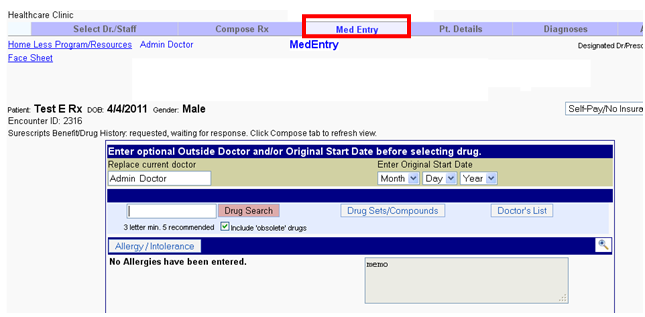 Step 2: – You can manually enter the drugs that the patient is currently taking. Enter 3 to 5 letters of the name of the medicine and hit the “Drug search” tab.
 Step 3: – Clicking the “Search” button, you get the list of the medicines with name starting with these letters, as shown below.
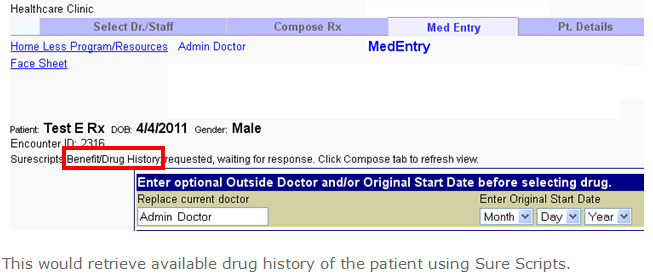
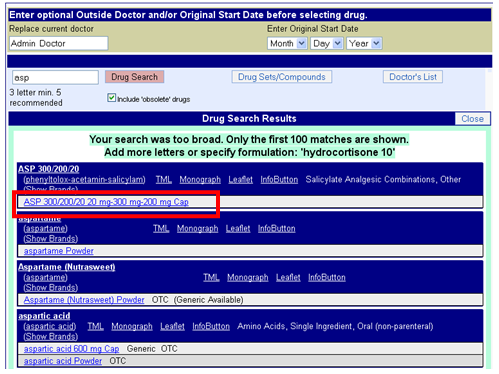 Step 4: – Select the med you need and click on the “Select to Move to Current Meds” to move the medicine to the current medications. Importing medication from Sure Scripts. Click on “Benefit/Drug history”. This would retrieve available drug history of the patient using Sure Scripts. Entering a Sig Create your prescription, see screen shot below. Make sure you click “Save this Sig and Add to Doctors List”, then click “Save Rx”. By doing this the next time you do a drug search for this medication the sig is attached and there is no need to retype this information again.
 Next time a drug search is done you see this. Click on the drug with the sig attached, you do not have to retype this information in again. This information will also be saved in your doctor’s list.