Procedure Order Using Diagnosis
In the doctor’s forms, you have an option to import a separate tab for ordering labs called “Procedure Order Using Diagnosis”. This tab looks like this: 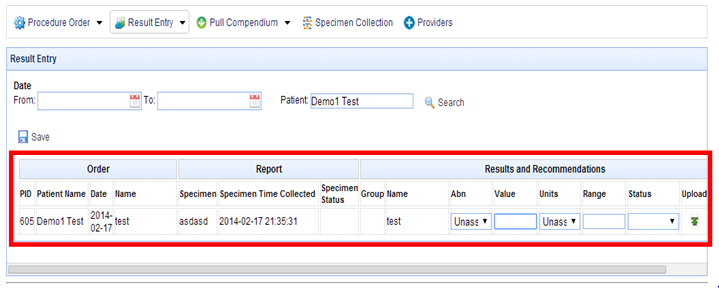 The above screen can be explained as follows.
 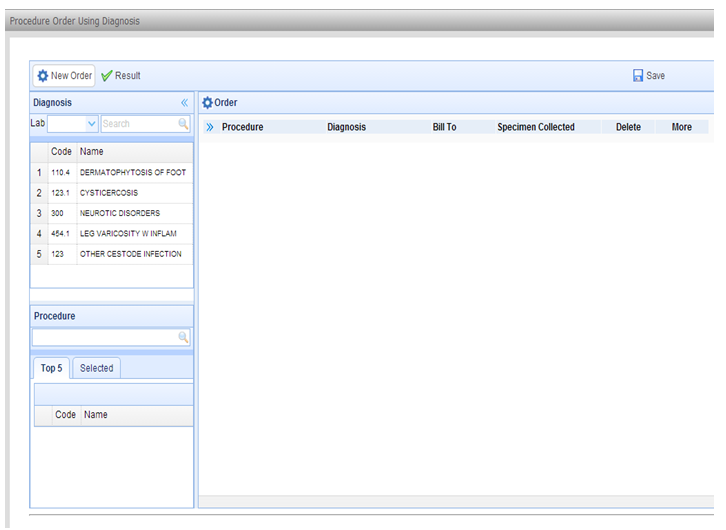 The above screen shot is of the diagnosis area. Here you have a dropdown called “Lab” and a search option to search for the various diagnoses. The diagnoses that are listed are the previous diagnoses that have been captured in the system for the particular patient.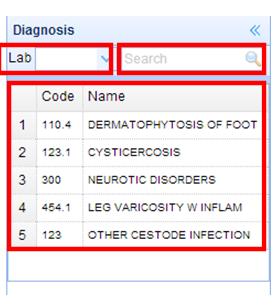
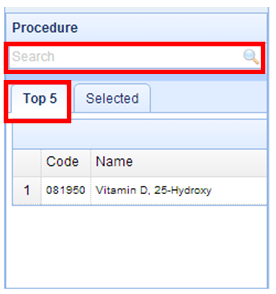
The above screen shot gives the procedure area. Marked above is an area where the user can search the procedure.
The “Top 5” tab gives the top 5 procedures that have been selected in the system.
The selected tab shows the procedures you have selected at present.
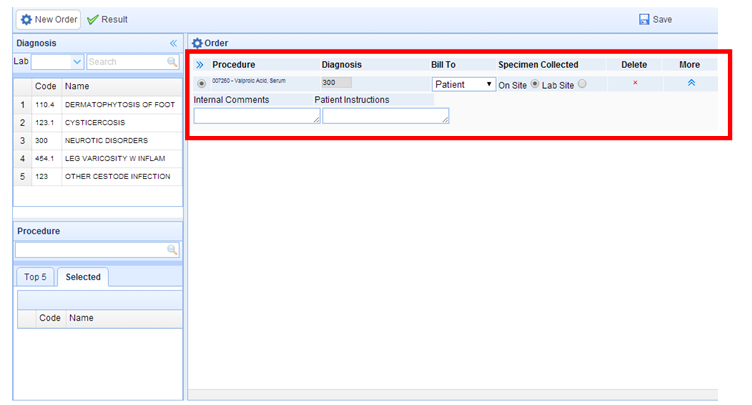
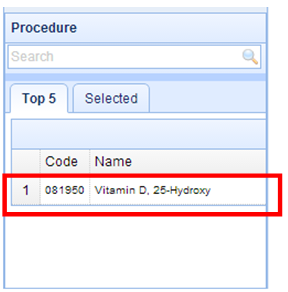
When double clicking on the procedure shown below, you can select the procedure. This will take the procedure onto the right hand pane.
 You can add further diagnosis by double clicking on the diagnosis list on the left hand side.
  The details that are to be filled in are the same as in the “Procedure Order Screen”explained earlier.