

Checking The Results
Results
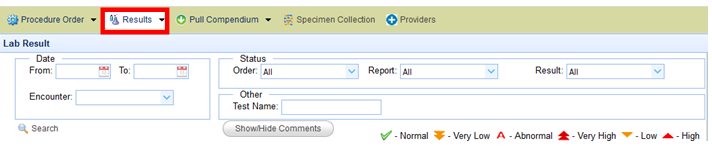
Click the “Results” button to see the result for this particular patient that you had selected when you created this test.
The result screen will show the results of just a single patient at a time.
Batch Results
There are other options like “Batch Results” and “Unassociated Results” that can be selected.  When selecting the “Batch Results” you get all the results of all the patients and their respective status.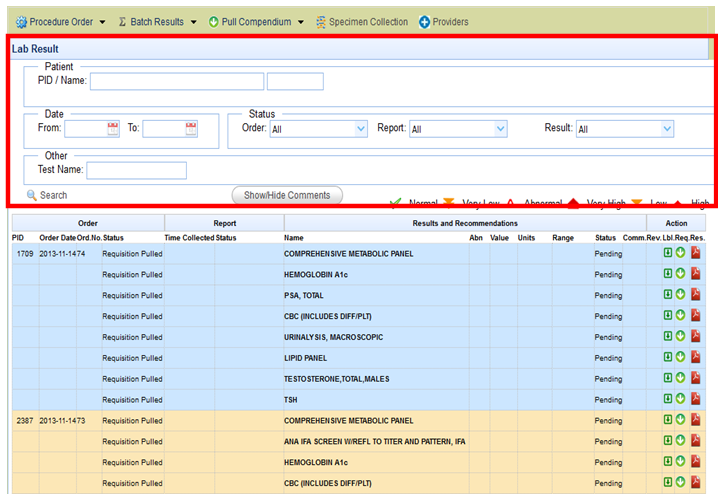
In the top section you have the options to filter out the results on the basis of various different criteria (The “Results”option is also similar, except that it is associated with one particular patient. The “Batch Result” is associated with all the patients).
Explanation of the result screen. 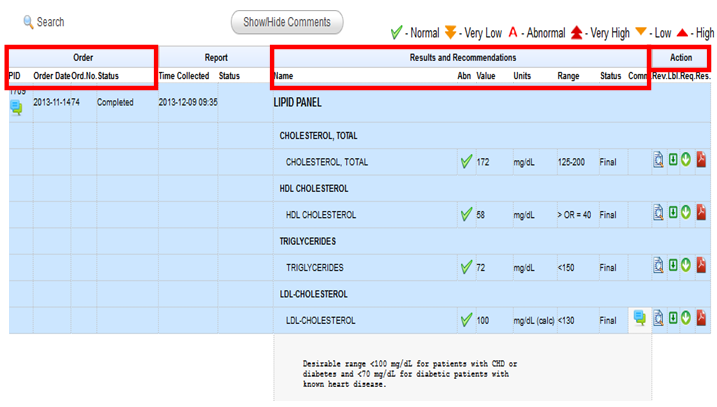
The result screen can be broken into various sections:
Order: – Under the order there are details of the order that is being placed.
- PID: – The patient ID of the patient on which the lab test is undertaken.
- -Order Date: – The date on which the order is done.
- -Order No.: – The unique date on which the order is made.
- -Status: – This column gives the status of the order (Whether pending, completed etc.)
Results and Recommendations: – This section deals with the results and associated recommendations.
- -Name: – Gives the name of the test.
- -Abn: – Gives the details as to whether the test is normal, very low, abnormal etc.
- -Value: – Gives the actual value that associated with the test for the particular patient.
- -Units: – The unit in which the value is given.
- -Range: – The normal range that is acceptable for this test.
- -Status: – The status of the test (whether pending. Final etc.)
- -Comm.: – This is the comments section.
Action: – The section to the extreme right is the action section. It has the following parts.
- -Rev: – This section enables the user to review the tests one after the other. It also allows the user to add any review comments and sign.
- -Lbl: – This give the label which can be put on the sample which is being send for testing.
- -Req: – This will give the requisition that is generated and send to the labs.
- -Res: – This will give the lab result in a PDF format.
Unassociated Results
If there is any error in the result that comes in, and the system is unable to associate the result that comes in electronically from the lab, then the result will show in a field called “Unassociated Results”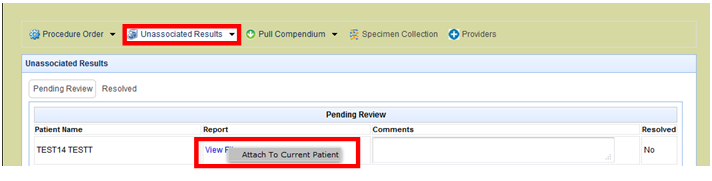 You can associate a particular result to the current patient that is chosen on the screen by right clicking on a view file option and attaching the result to the current patient as shown above.