Other features
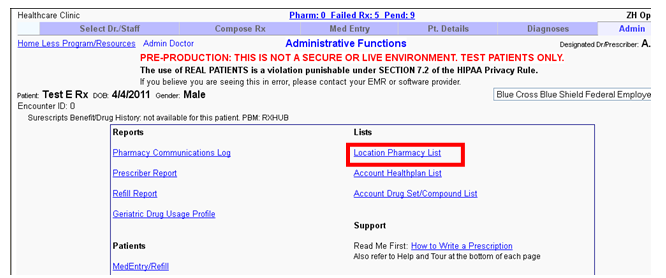
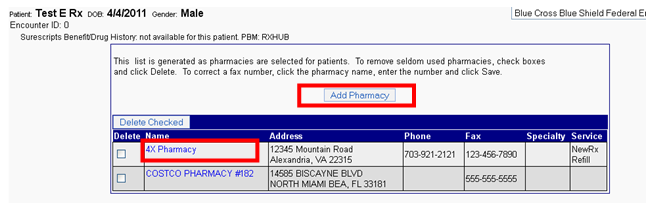
Adding or editing location pharmacy details Click on the location pharmacy list link shown below. You go to a page shown below. Here you can add a pharmacy by clicking the “Add pharmacy” button, or edit the fax number of an already existing pharmacy, by clicking on the pharmacy name.
 Automatic featuresThis module automatically shows.
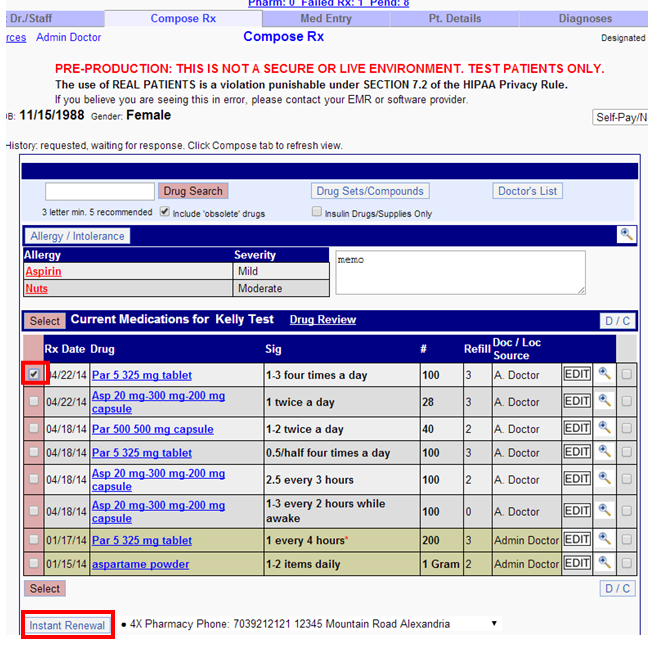
- Drug to Drug interactions.
- Drug to allergy interactions.
- Drug Formulary Information.
To add a health plan manually Click on the Admin Tab which comes on the screen after clicking the “Add eRx” button in the patient chart. Then click on the Account Health plan link: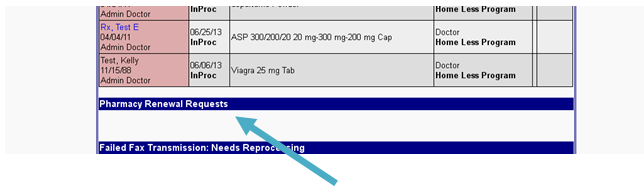 Click “Add Additional Health Plans” link:
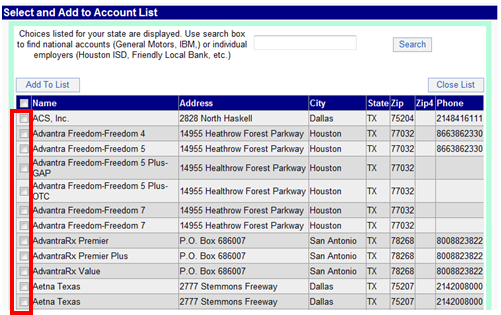
  You will now see a list of health plans available in your state.
 You can add all the health plans to your location by clicking the check box to the left of “Name” shown above. We can use the select all, or individually select the health plans then click “Add To List”. Once you have created your account health plan list. You can now go into the Patient Details Screen which is shown below.
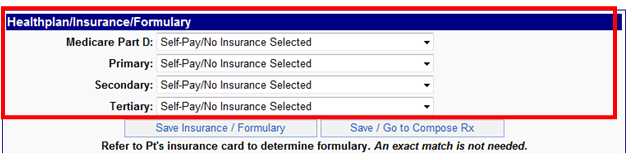
 We can add the “Healthplan” in the areas shown below.
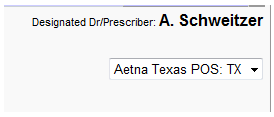
  You should now see under the providers’ name in the upper right hand corner the insurance that you have assigned to this patient.
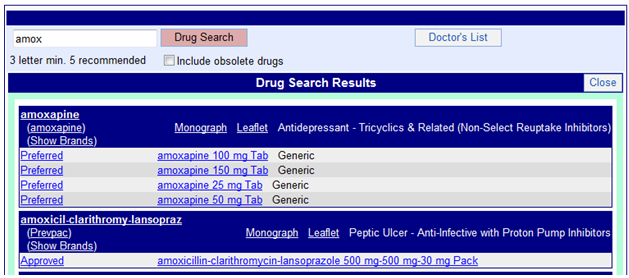
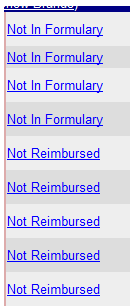
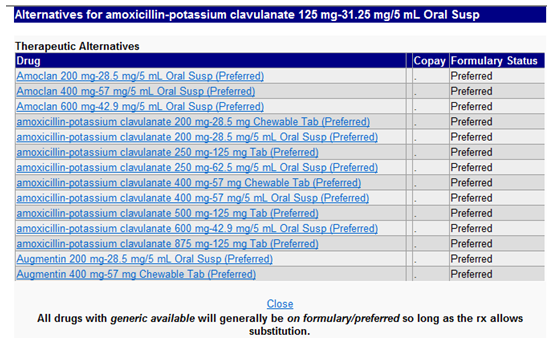
 Now on the Compose Rx area, search for a medication. You will see formulary checking done and displayed on the left side of your medication:
 Preferred is the lowest tier of a patient insurance, EXAMPLE: Preferred is their $5 co-pay, approved is the next tier this could be their $10 co-pay. You may also see not reimbursed, not in formulary, not approved etc.
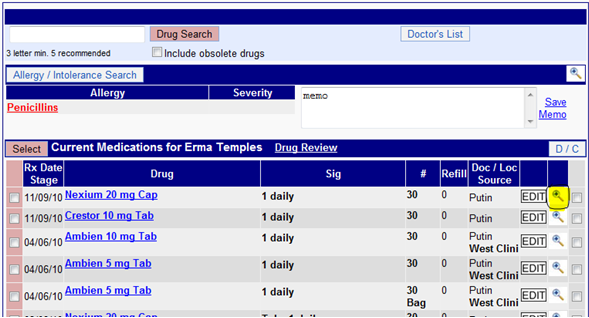
 Once you select your medication, create your Rx then transmit to the pharmacy. Reporting and retransmitting missing prescriptions When checking the status of a routed RX, follow the steps below: Click on the magnifying glass to the right of the medication in the current med list, this will open Rx Details:
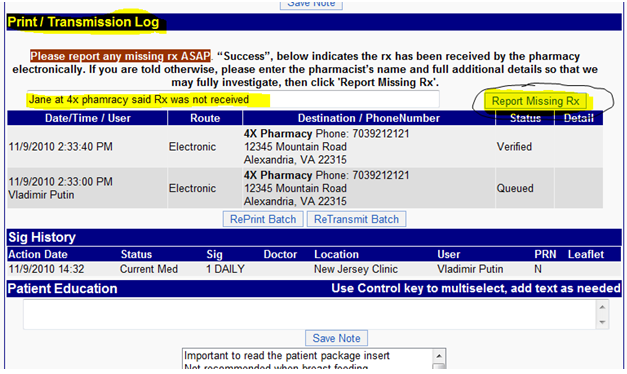
 Scroll down until you see the print/transmission log. The information in this section will tell you when the Rx was routed, who routed the Rx, how it was routed, ie:electronic, fax, RxHub or print, where the Rx went to and the status. If an Rx was sent electronically you will see the report missing Rx button and a free text box to the left of that button. If a pharmacy calls and says they did not receive the Rx, you must type in who you spoke with at the pharmacy then click report missing Rx. This will generate an email to SureScripts for research. As per SureScripts if an Rx was sent electronically and you see a verified and or a success 99.9% of the time the pharmacy received the Rx and it is a pharmacy training error. This is why you always ask who you spoke with at the pharmacy so that they can receive the proper training on how to use their system. Once you receive the findings back from the pharmacy that will be emailed back to the EMR vendor to share with the provider. If an Rx was routed to a pharmacy by fax is not received, the provider/nurse will have to retransmit the fax again to the pharmacy:
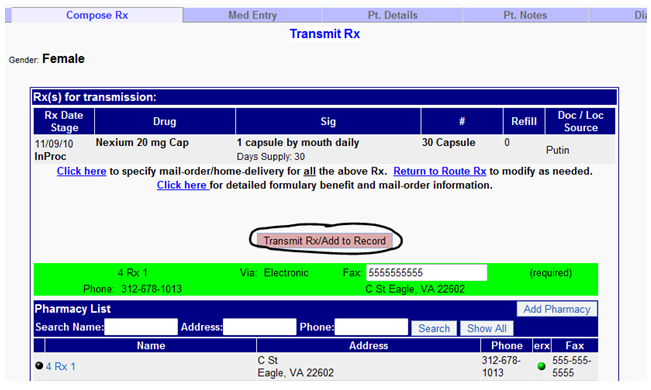
 After you have filled in the information and clicked report missing Rx you can now retransmit the batch to the pharmacy again by clicking the retransmit batch button, then transmit add to record. This will resend the Rx to the pharmacy:
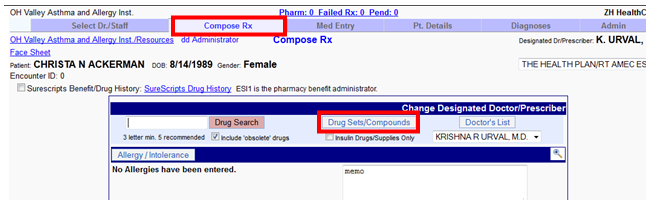
  How to create and use drug sets Creating drug sets allows providers to create a set of medications based of a diagnosis or create a set of compounded medications. Much like the Doctor’s List, this feature saves the medication with sig for repeated use. Drug sets allow providers to prescribe a group of medications efficiently, and creates a standardized drug selection. Drug sets are maintained by account and are available for use by any user at any location. Click on the Drug Sets/Compounds button in the Compose Rx page shown below
 Click on the link: Maintain Drug Sets
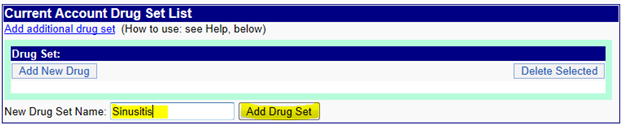
 Type in the name of the diagnosis or the name you would like to call this drug set, click Add Drug Set
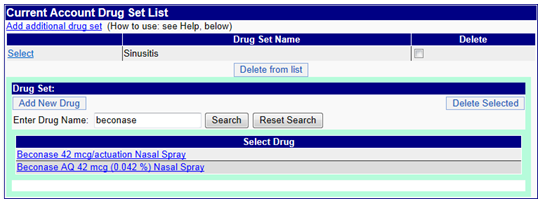
 Now click select next to the name of the drug set you have just add, then click “Add New Drug.”
 Type in the name of the drug you would like to add and click “Search”, then select the medication you would like to add
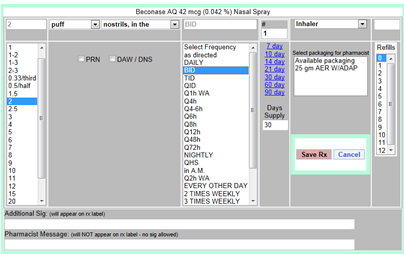
 Once you click on the medication the Edit screen will open up. Write the prescription as you normally would and click “Save Rx.”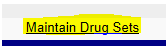
 You will see the medication you have created in your list, click “Add New Drug” to add more to your drug set list.
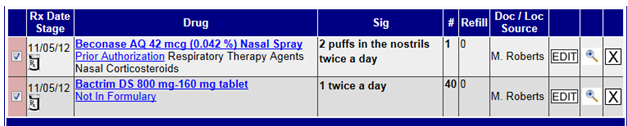
 If you would like to add more drug set lists follow the steps above to create. Once you have finished creating your drug set lists, click over to the Compose page and click on your “Drug Sets” button. There you will see the list of drug sets you have created. Click on the box to select next to the drug set name. The list will be placed at the top of the page: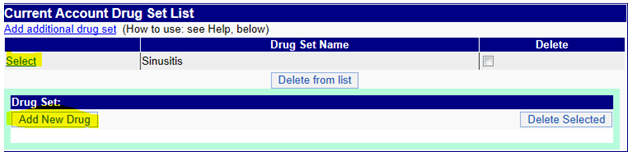
 Prescribe All these medications with the sigs that you have created will now be pending (InProc). Process the prescriptions normally to transmit to the patient’s pharmacy. Alternately, you may check individual drugs you would like to prescribe from the drug set.
 Leaving for staff processing When a provider does not want to go through the process of selecting the pharmacy for prescribing a drug, the provider can choose to leave the processing of the prescription to the staff at the facility. In the review Rx page in a providers login, there is a tab “Approve/Leave for staff”
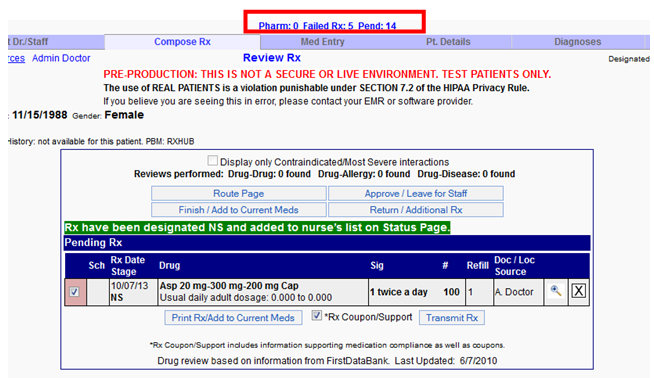
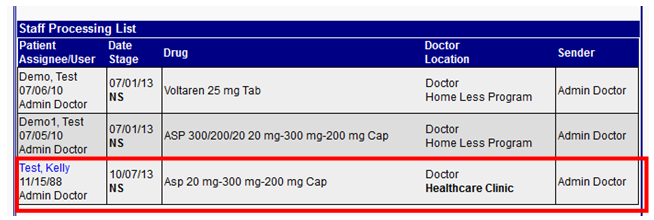
 Once this button has been clicked, you can see this drug in the list for staff processing. You need to click on the below showed link, to view the staff processing list.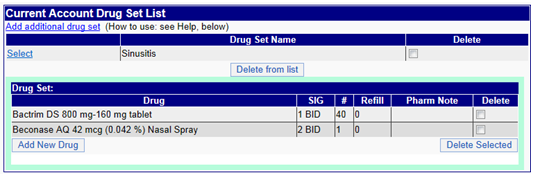
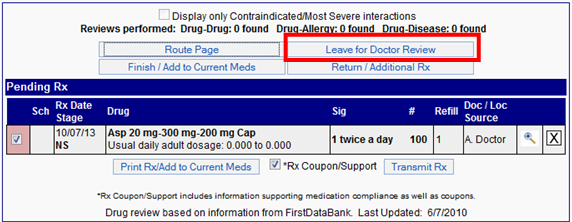
 Now when the staff logs in, they can go ahead and complete the prescription process, as advised by the doctor through their logins. Leaving for doctors approvalWhen a front office staff does the job of selecting the drug for a patient and wants to leave it for doctor’s approval. In his/her user, in the Review Rx page they will have the option “Leave for Doctor Review”.
 Clicking the below shown link, you can see the above prescription being added to the doctors review list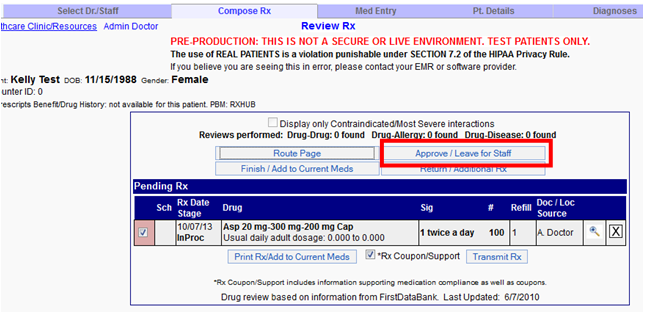
 Now when the doctors log in, they can go ahead and approve the prescription left for their approval by the nursing staff. In the Review Rx screen, the doctor will have the option to approve.
 Other features under the ‘Admin’ tab in the Prescription page Under the Admin tab in the prescription page, you have the option to print reports, get further support and orientation views etc.