Placing A Procedure Order
To place an external order, you have to enter the information listed below: 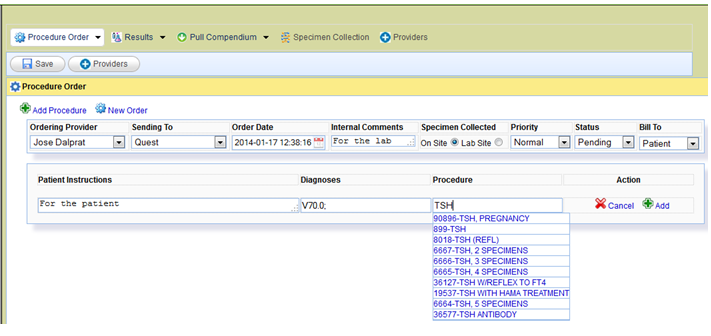
Ordering Provider: – This will list down all the names of the providers. You need to choose the ordering provider from the list.
Sending To: – This will list all the external labs/internal labs to which the orders can be send.
Order Date: – It is the time stamp when the order is being placed.
Internal Comments: – These are comments that are sent to the lab. Free text notes can be entered here.
Specimen Collected: – Here you specify whether the specimen for the testing is collected in the facility itself or on site at the external lab.
Priority: – This is to set the priority.
Status: – This gives the status of the labs.
Bill To: – This gives the details as to who should be billed. There are 3 options for billing:
- Patient: – When patient is responsible for payment.
- Third party: – When insurance is responsible for payment.
- Facility: – When doctor’s office will be responsible for the payment.
Patient Instructions: – This is the data that is free texted and it will be given to the patient along with the result.
Diagnosis: – Diagnosis code for a test is entered in here. When you type the first few letters/numbers, the diagnosis starting with those letters/numbers will be automatically suggested.
Procedure: – Here you list the code for the lab procedure. When you type the first few letters/numbers, the procedures starting with those letters/numbers will be automatically suggested.
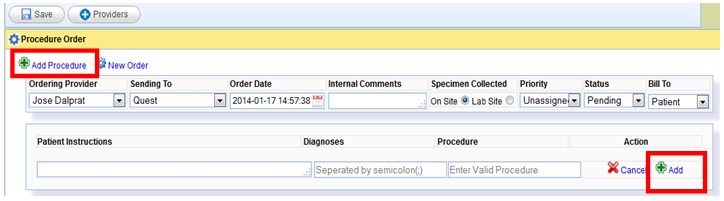 You can add a new test by clicking any of the “Add” buttons shown above.
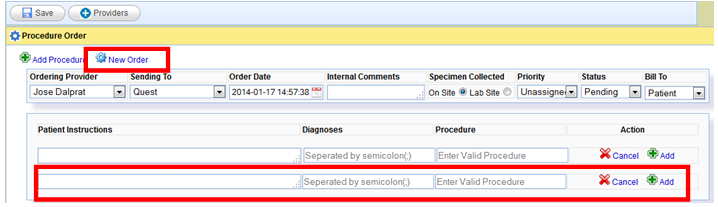 If you want to add a new order altogether, you click on the “New Order” marked in the figure above. This will open a new window where you can place a separate set of orders.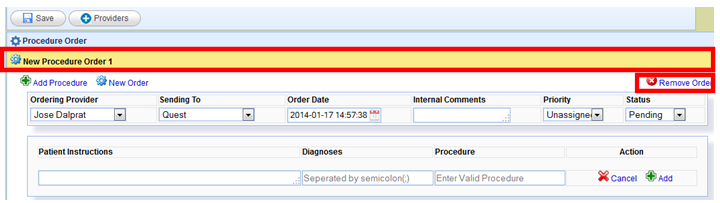
You can also remove the order by clicking on the “Remove Order”.
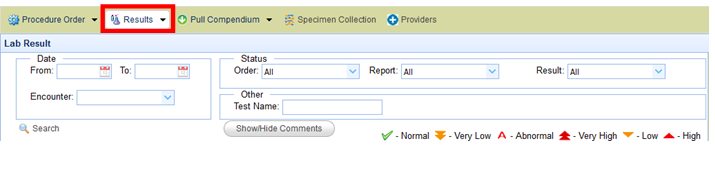
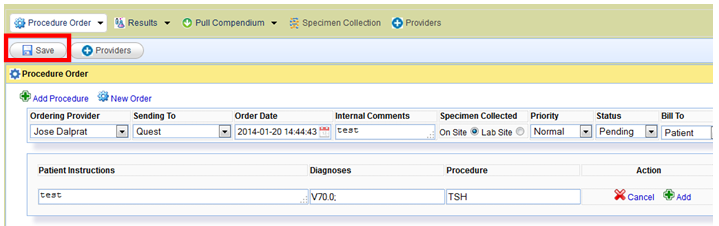
You click on “Save” and the screen is automatically changed to the “Results” screen where you can see the status of the order.
 The“Results” screen will be as shown.