Prescribing New Drugs
Compose Rx takes care of
- Prescriptionwriting.
- prescriptions.
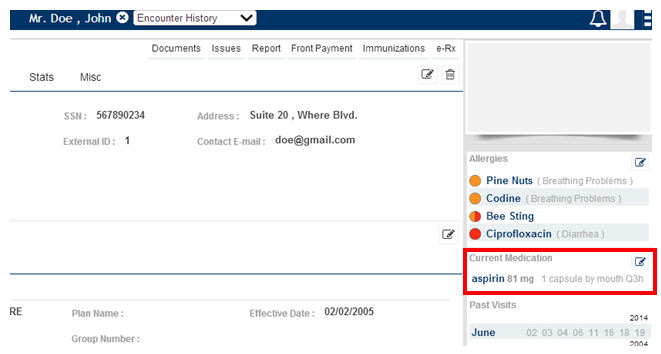
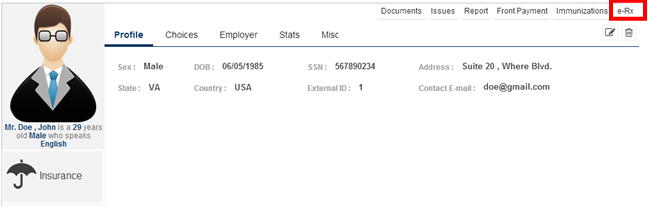
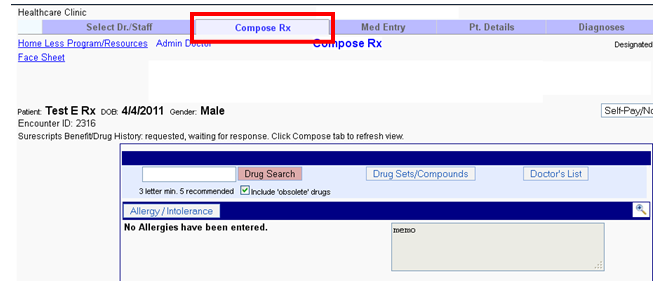
Prescription writing Step 1: – Click on the “e-Rx” in the patient chart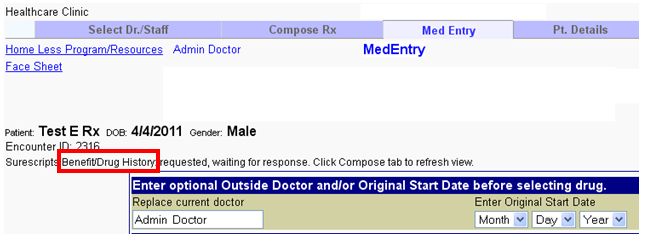 Then you come to the “Compose Rx” page
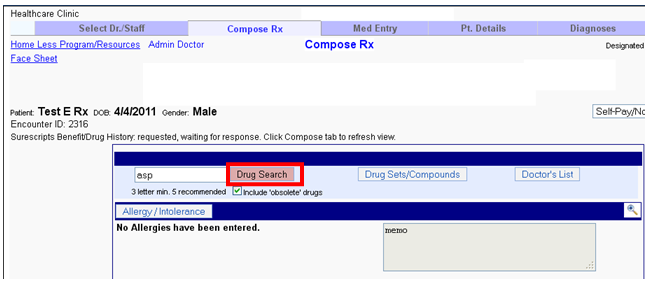
  Step 2:- Type 3 to 5 starting letters of the medicine you want to prescribe and click on “Drug Search” to search for the medicine.
 Step 3: – You get a list of drugs starting with those letters.
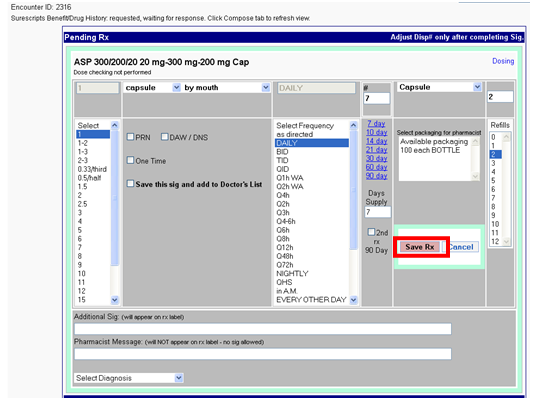
 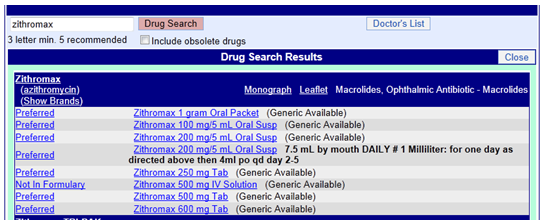 Select the drug which needs to be prescribed by clicking on it. Step 4: – You come to the page where you can decide the dosage.
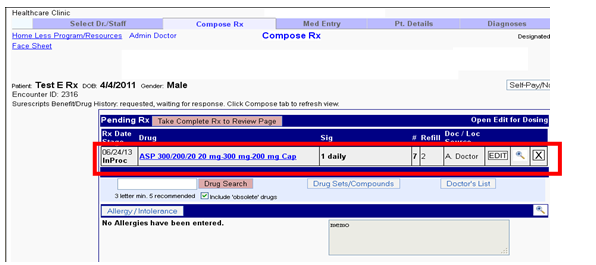
 Select the dosage and click “Save Rx”. Now below you see the medicine added for prescription.
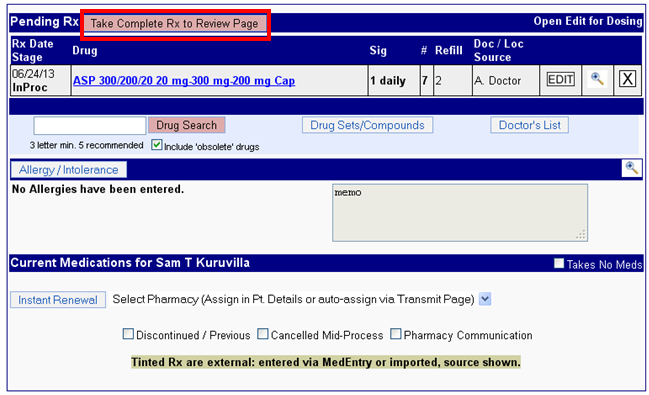
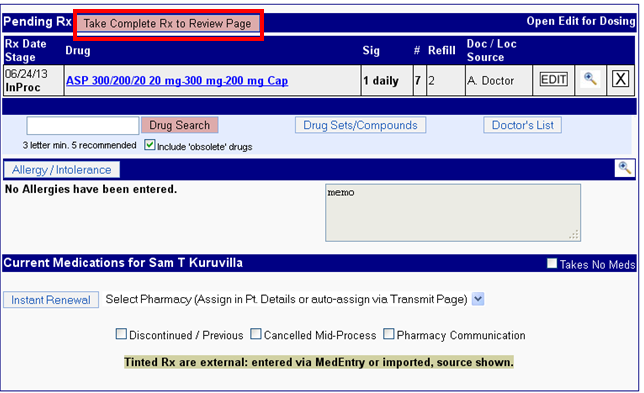
  Sending prescriptions (Print) Step 1: – Click on the “Take Complete Rx to Review Page” tab to go to the page where you can send the prescription to the pharmacy.
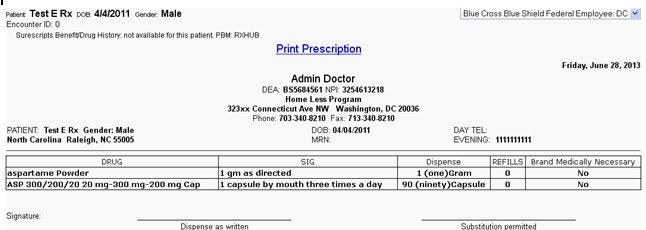
  Step 2: –You can click on “Print Rx” to prescribe through paper.
  A print copy of the prescription would be as shown below
 Sending prescriptions (Electronic) Step 1: – Click on the “Take Complete Rx to Review Page” tab to go to the page where you can send the prescription to the pharmacy.
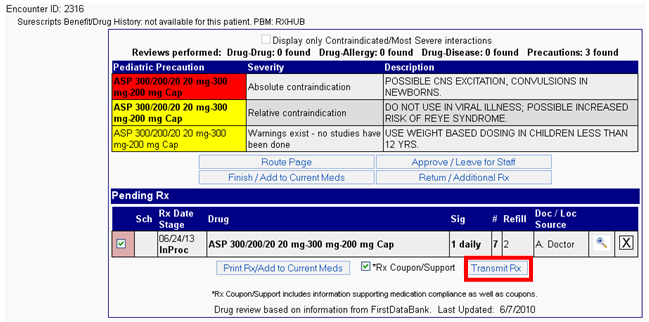
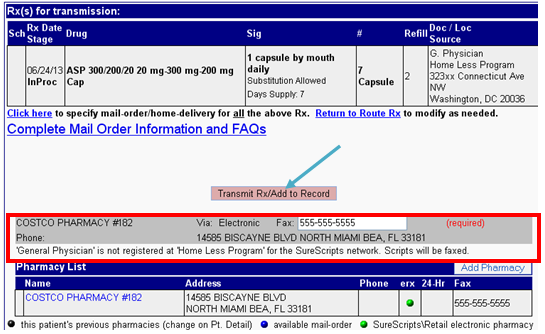
 Step 2: – Click on “Transmit Rx” to choose the pharmacy where you want to transmit the prescription.
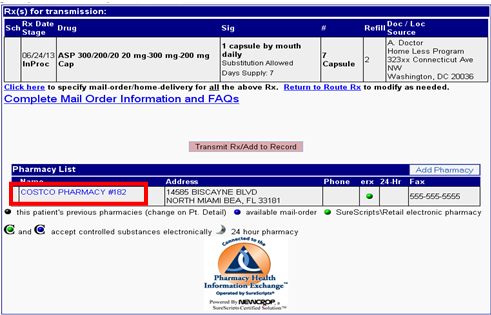
 Step 3: – You can transmit the prescription electronically to any of the pharmacies in the pharmacy list (In this case there is only one, so you don’t have a choice), by clicking on the pharmacy name.
  On clicking the pharmacy name, the pharmacy gets Selected. You can search for more pharmacies using the “Add pharmacy” button
 Thereafter you click on the “Transmit Rx/Add to Record button”
 Step 8: – When the “Transmit Rx/Add to Record” (seen in the above screen shot) is clicked, the prescription gets transmitted as shown below.
 You can see the transmitted prescription if you expand the “Prescription History” on the patient chart.
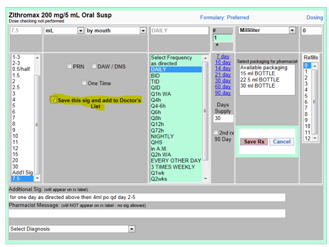
 Entering a Sig Create your prescription, see screen shot below. Make sure you click “Save this Sig and Add to Doctor’s List”, then click “Save Rx”. By doing this the next time you do a drug search for this medication the sig is attached and there is no need to retype this information again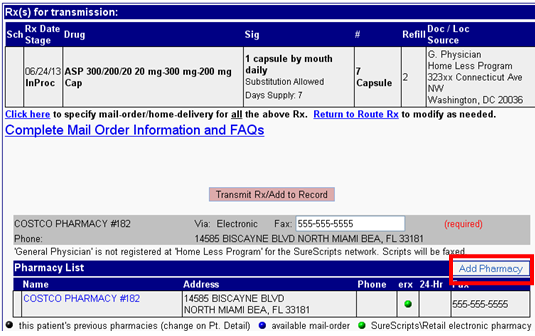
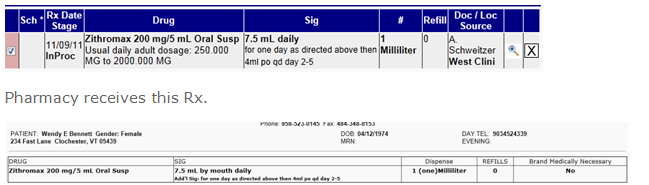
 Pharmacy receives this Rx.
 Next time a drug search is done you see this. Click on the drug with the sig attached, you do not have to retype this information in again. This information will also be saved in your doctor’s list.