

Procedure Configuration
Looking at the procedure configuration. 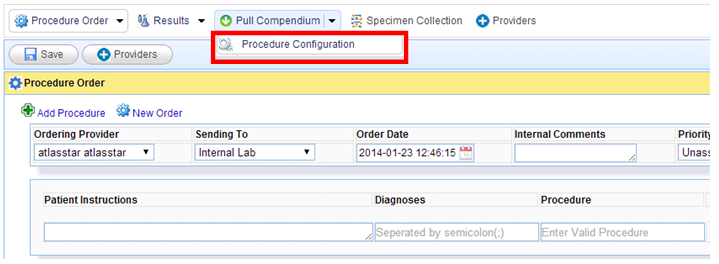 Click on the “Procedure Configuration” to move to the screen where you can add tests (especially used for the internal lab option).
 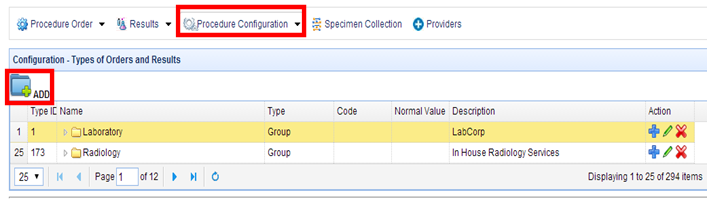 You can get to the screen to add the tests using the “Add” button shown above. Once you click the “Add” button you get to the following screen.
 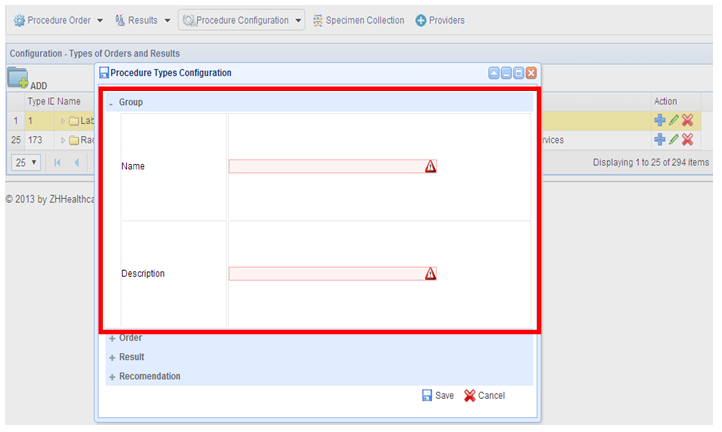 The“Group” section shown above allows you to group the newly added tests under a particular category.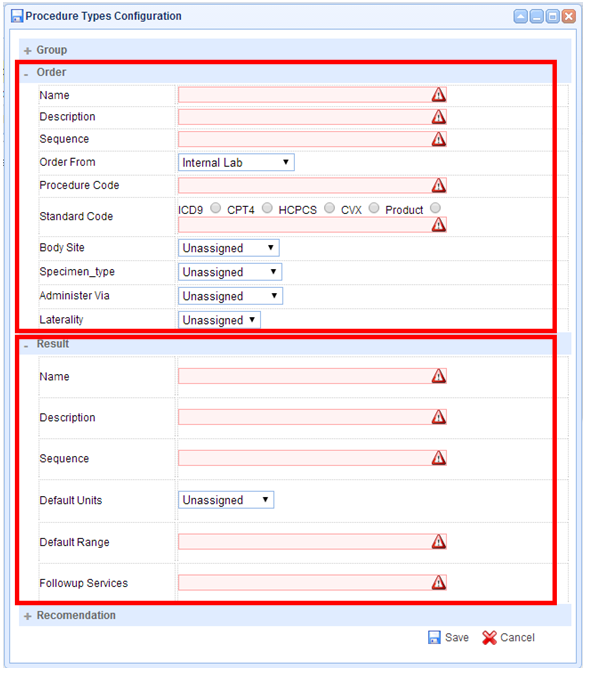
In the “Order” section shown above, you can add the new tests and the details associated with them. Afterwards, you can find the added tests when you select the local or internal lab option in the “Procedure Order” screen.
In the “Result” section shown above you can add any details that you would want to automatically appear in the result entry screen.
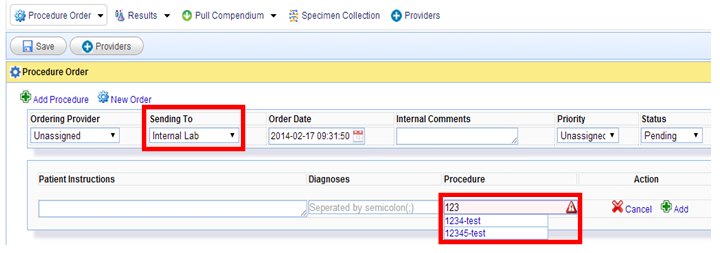
Under the “Internal Lab” option, you are able to select the tests you add, as shown below.
 When placing the orders in the internal lab, you can record the specimen collection details.